CubbyScan
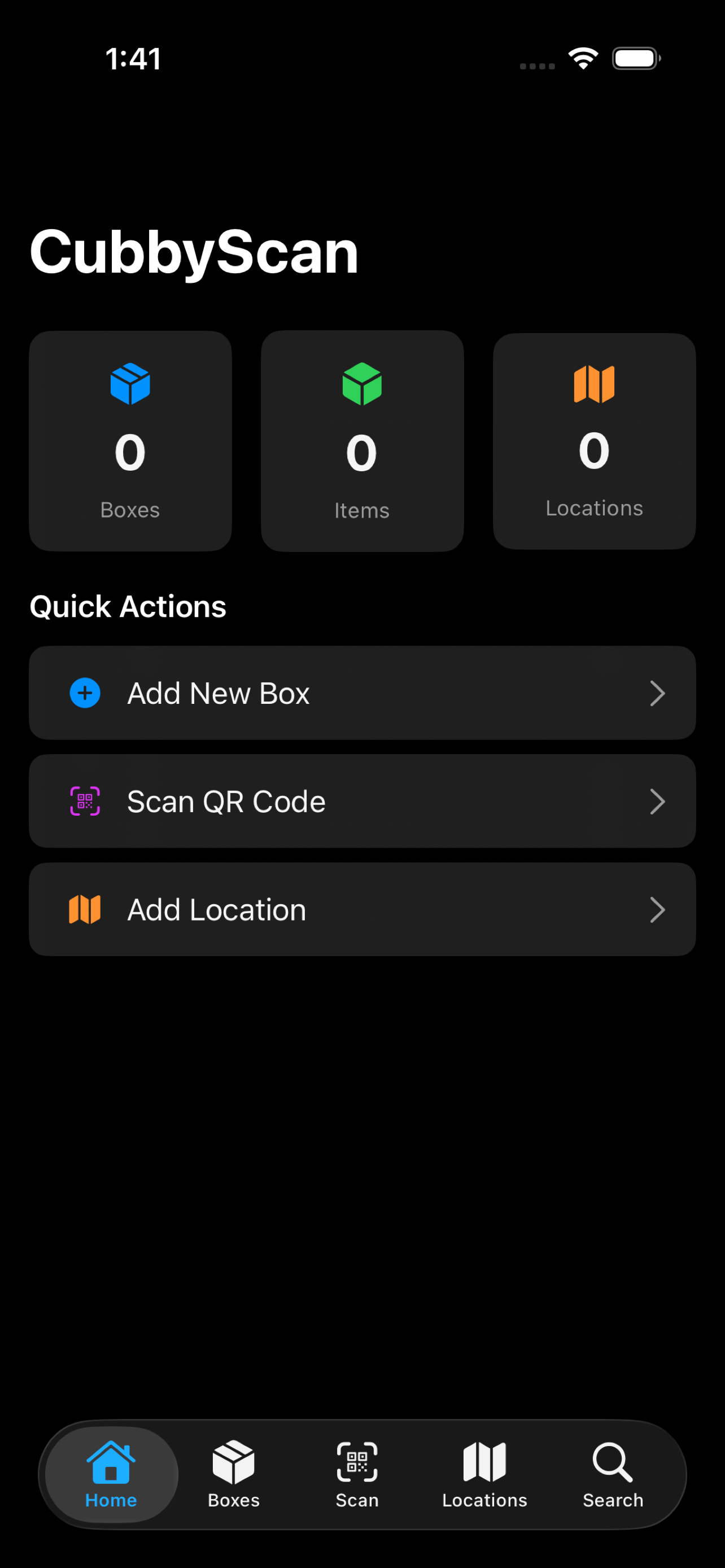
Scan, track, and find everything you store.
Features
Box Management
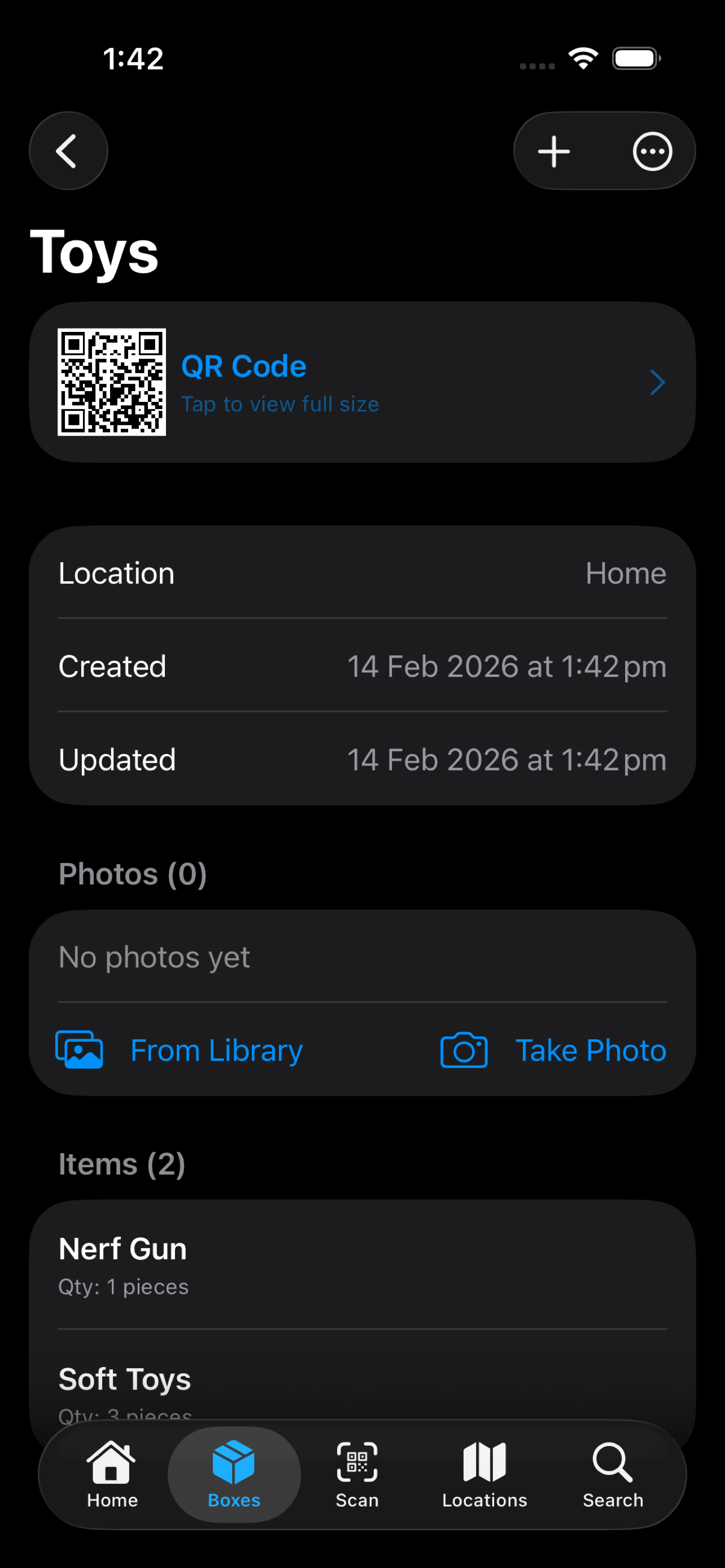
Create, edit, and archive storage boxes. Assign them to locations and track what's inside.
Item Tracking
Add items with quantities, categories, tags, and descriptions. Search across everything instantly.
QR Code Labels
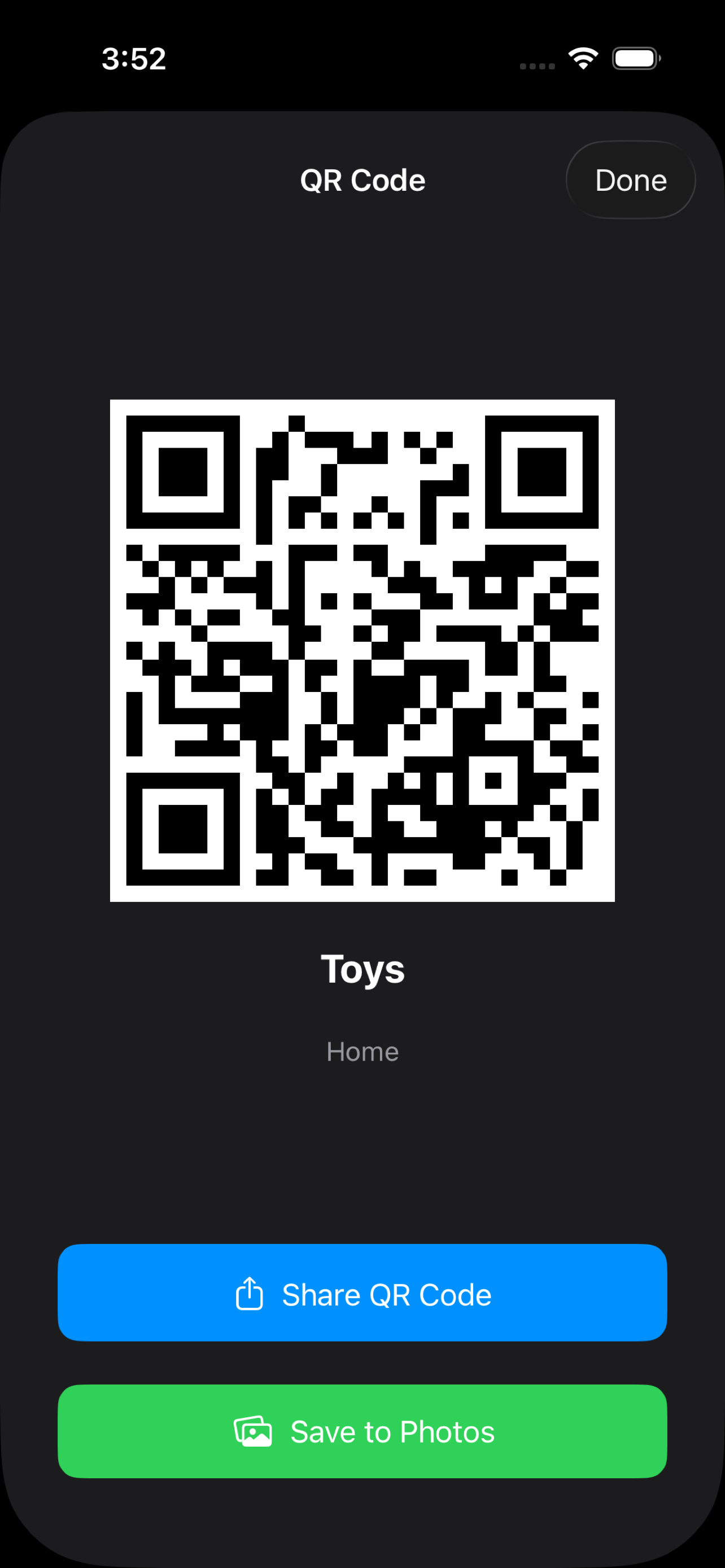
Every box gets a unique QR code. Save or share it for printing, then scan it to see contents.
Photo Capture
Take photos of box contents or pick from your library. Tap any photo to view it full screen.
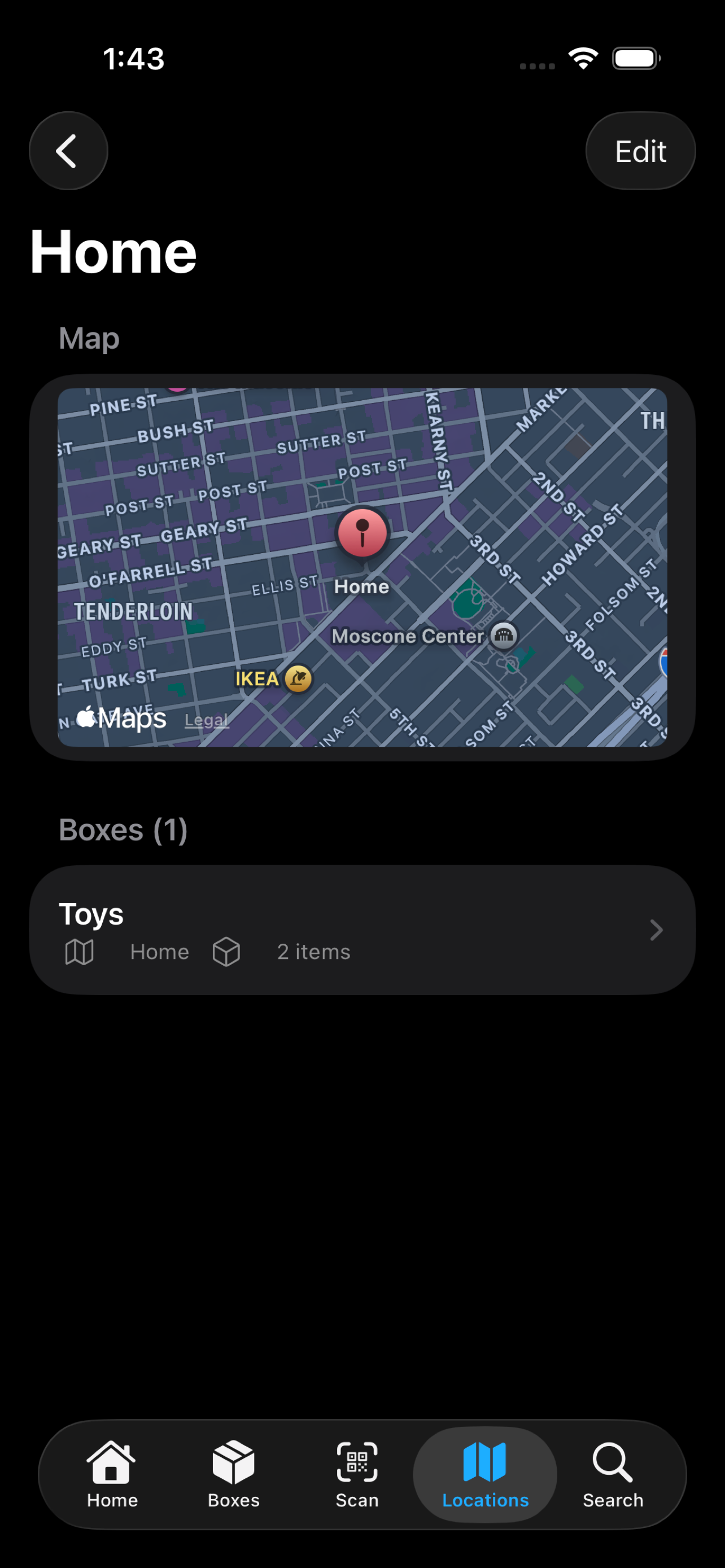
Locations
Organize boxes by where they're stored — garage, attic, closet, storage unit, or anywhere.
Export & Import
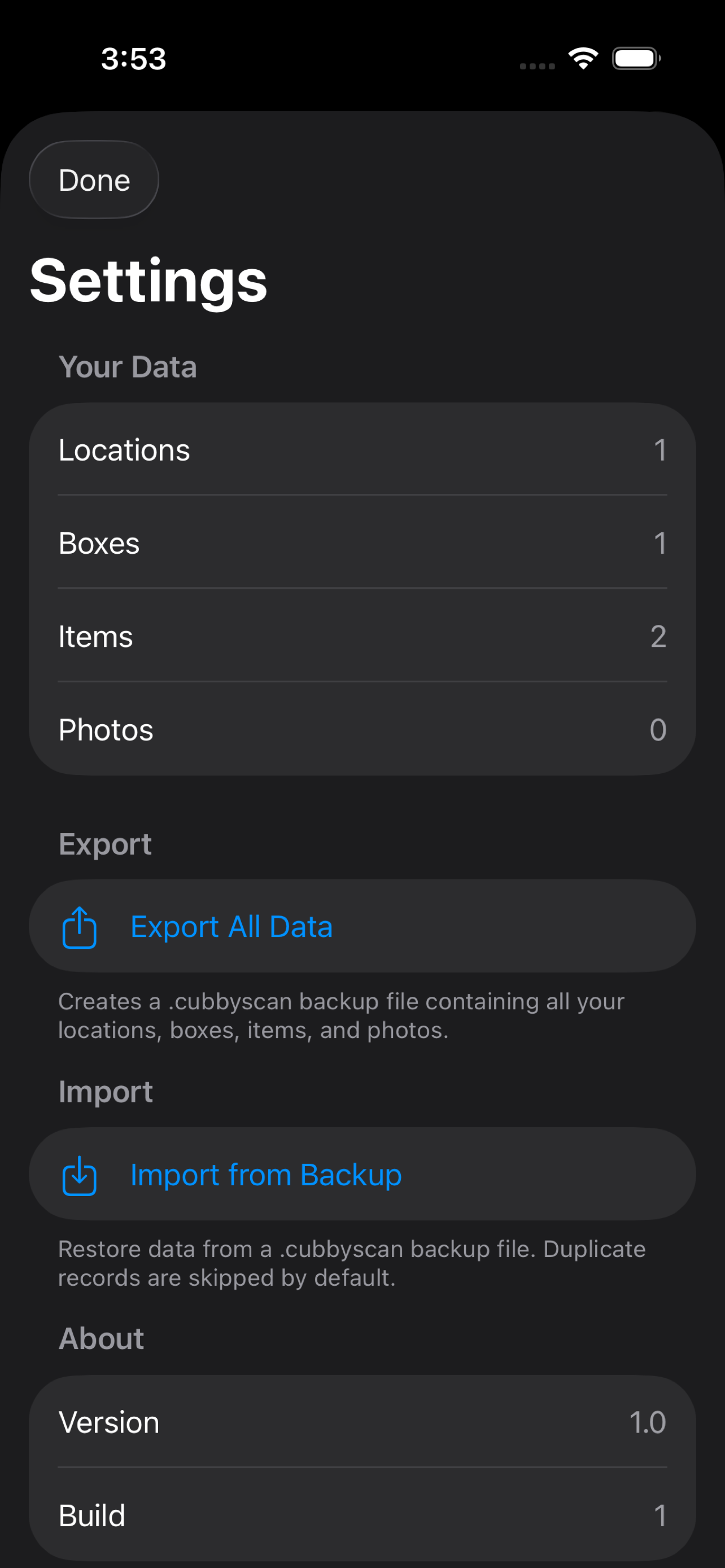
Back up all your data to a .cubbyscan file including photos. Restore on any device via AirDrop or Files.
Getting Started
1. Create a Location
Add where you store things — your garage, attic, closet, or storage unit.
2. Add a Box
Create a box, give it a name, assign it to a location, and add the items inside.
3. Print the QR Label
Every box gets a unique QR code. Save it to your Photos or share it for printing, then stick it on the box.
4. Scan Anytime
Point your camera at a label to instantly see what's inside. Or use the search tab to find anything.
5. Back Up Your Data
Go to Settings and tap Export to create a backup file. Import it on another device to transfer everything.
Frequently Asked Questions
Does CubbyScan require an internet connection?
No. CubbyScan works entirely offline. All your data is stored on your device.
How do I back up my data?
Open Settings from the Home screen, then tap Export All Data. This creates a compressed .cubbyscan file containing all your locations, boxes, items, and photos. You can save it to Files, send it via AirDrop, or share it any way you like.
How do I restore a backup?
In Settings, tap Import from Backup and select your .cubbyscan file. You'll see a preview of what's in the backup before confirming. You can also open a .cubbyscan file directly from Files or AirDrop.
How do I print QR labels?
Open a box, tap the QR code, then use Share or Save to Photos. Print from the Photos app or any print service.
Can I move items between boxes?
Yes. Edit an item and change its assigned box.
What happens if I delete a location?
All boxes assigned to that location will also be deleted. You'll be asked to confirm before this happens.
What if a QR label gets damaged?
You can reprint the label anytime from the box detail screen. Your data is not stored on the label itself.
Is my data shared with anyone?
No. CubbyScan has no analytics, no ads, no accounts, and no servers. Everything stays on your device. See our Privacy Policy for details.
Contact
If you need help or have feedback, reach out at praveen.sxi@gmail.com.